STEP BY STEP GUIDE TO INTEGRATE FACEBOOK
Step 1: Connect Your Facebook Account Start by connecting your Facebook account. Click the button below to begin:
Step 2: Select Pages and Permissions During the connection process, you will be prompted to select the pages and permissions you want to grant access to.
Step 2: Select Pages and Permissions During the connection process, you will be prompted to select the pages and permissions you want to grant access to.
Follow the on-screen instructions to make your selections.
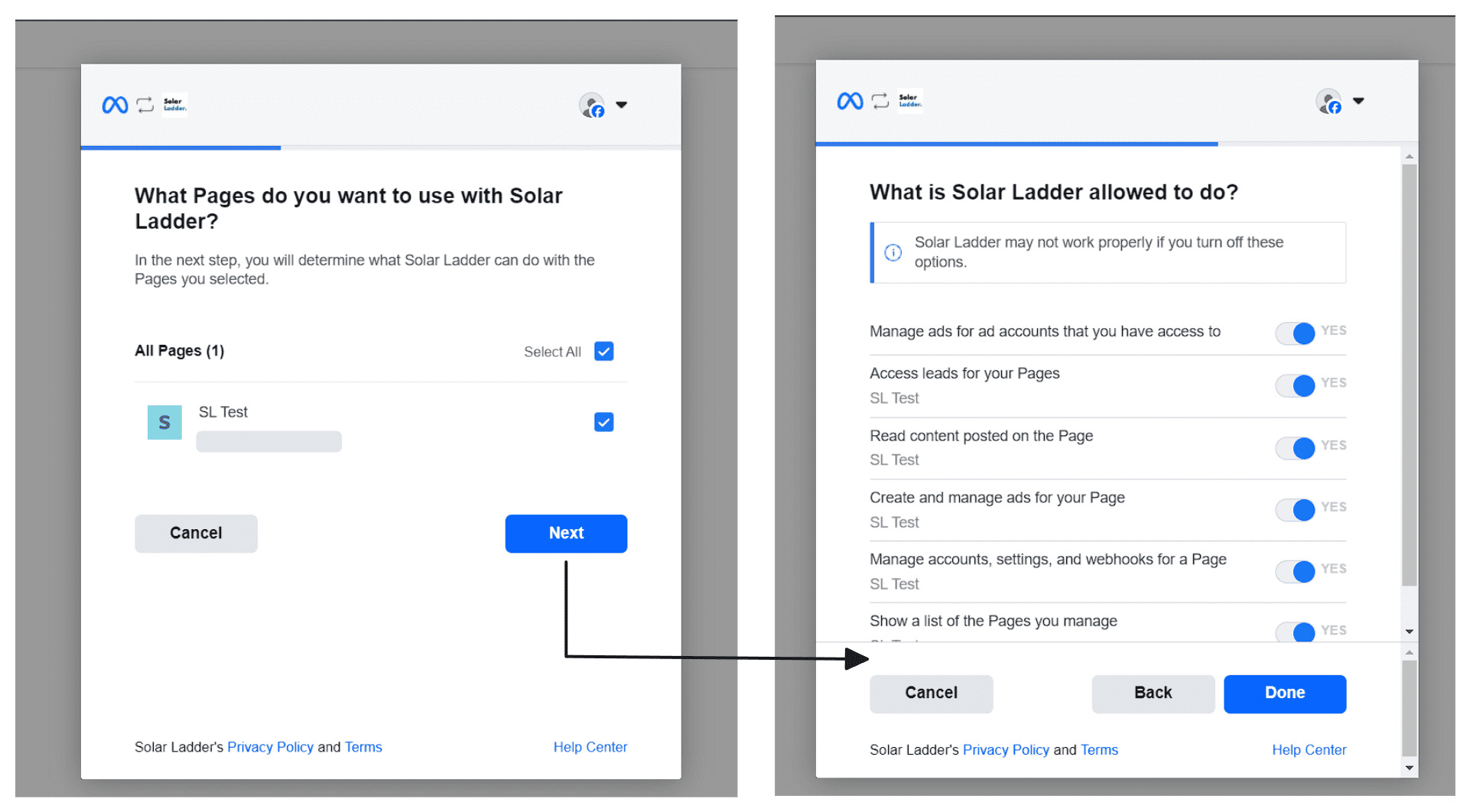
Step 3: Authentication Success and Redirection
After successful authentication, you’ll be redirected to a success page. Return to the Integrations tab to continue.
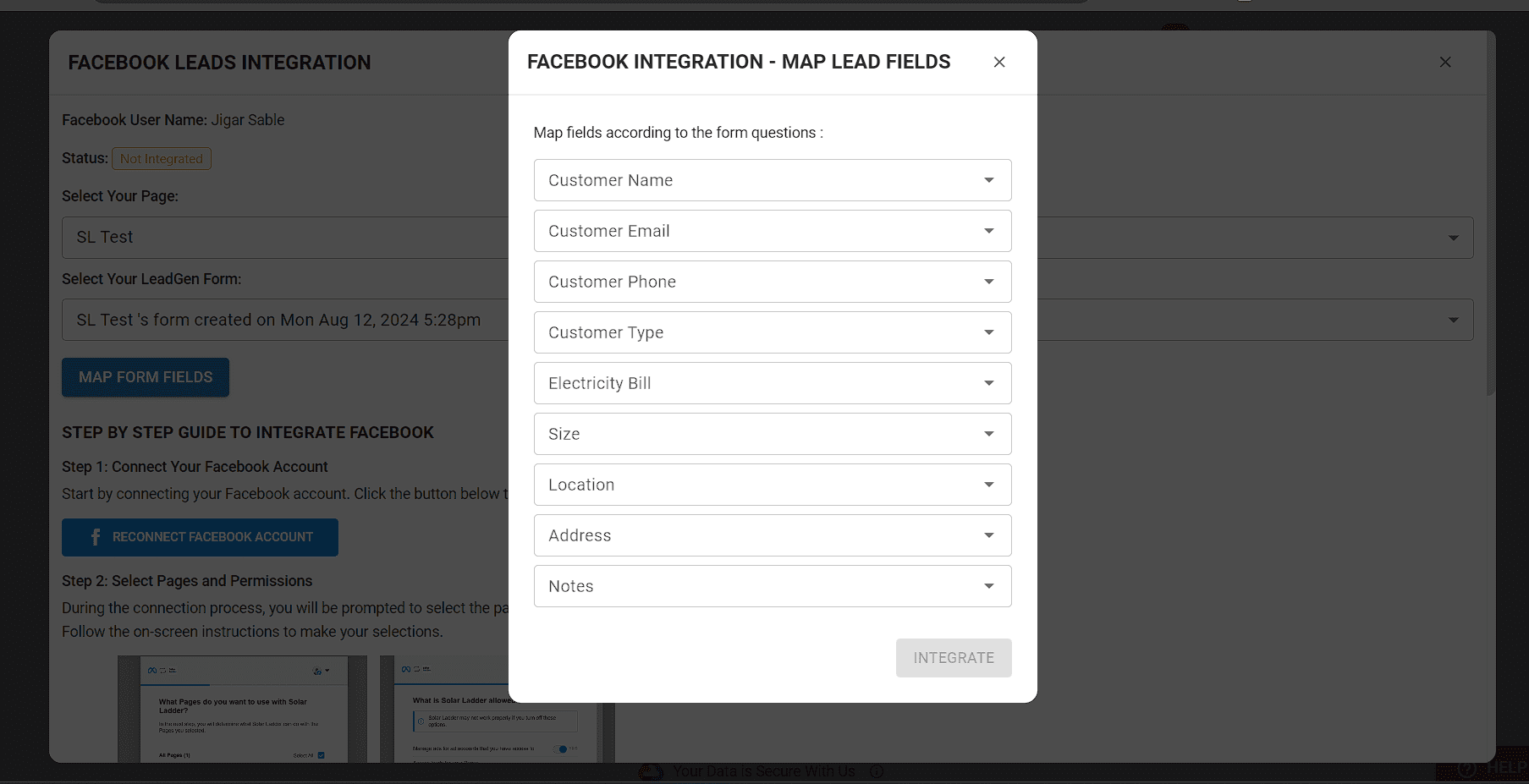
Step 4: Map Form Fields
- Select the Page and Form: Choose the page and form you want to integrate.
- Map Fields: Click on Map Form Fields and select the fields to map with form questions.
- Integrate: Click Integrate to complete the setup.
🎉 Congratulations! 🎉
Your Facebook account is now integrated! 🌟 Leads submitted to the selected form will directly appear on Solar Ladder. 📈
Additional Options:
🔄 Reconnect Facebook Account: To reconnect your Facebook account, follow these steps:
- ❌ Remove Facebook Account: Click the Remove Connected Account button and confirm your choice in the dialog that appears.
- Once the account is removed, click the Connect Facebook Account button in Step 1 to link a new Facebook account or reconnect the same one.
Related Articles
How To Integrate IndiaMART with Solar Ladder
How To Integrate IndiaMART with Solar Ladder To Integrate IndiaMART with Solar Ladder, you will require the CRM Key from IndiaMART and your Mobile Number. To Genereate CRM Key on IndiaMART follow these steps of Integration: STEP 1: Log Into IndiaMART ...How To Link Google Forms to Leads Page
Watch Video or Follow below given steps Step 1: Go to Google Forms you want to integrate Step 2: Install the Solar Ladder Google Forms to Leads add-on. (Click Here) Note: Allow the necessary permissions for the app to connect Step 3: Go back to the ...How To Update Multiple Projects and Leads At Once
Sometimes you might want to move several projects at once, reassign leads to someone and many more cases. This post covers how to do some commonly asked-for operations. Moving All/Selected Multiple Projects from One Lane To Another / Reassigning ...How to assign Leads to Members
How to assign leads to Members: Any leads that come to the leads page can be assigned automatically to the members with the help of three different options that are: 1. Via Project SIze. 2. Via Project Pin Code. 3. Via Alternative Option (Round ...How to integrate Site Survey form in our account
Step 1 : Click on Settings Step 2 : Click on Templates Step 3 : Click on Custom Forms Step 4 : Click on Site Survey Forms Step 5 : Click on Upload Template Step 6 : Click on Untitled Form (Untitled Form will be created after step 5) Step 7 : Click on ...