How To Update Multiple Projects and Leads At Once
Sometimes you might want to move several projects at once, reassign leads to someone and many more cases.
This post covers how to do some commonly asked-for operations.
Moving All/Selected Multiple Projects from One Lane To Another / Reassigning Multiple Projects to Another User - From the CRM/Lanes View
- Go to your Projects Dashboard and set the filters to which you want to move projects based.
- At the top right of the lane, a menu dropdown will give you these choices. Select the option you want, and confirm the number of projects affected.
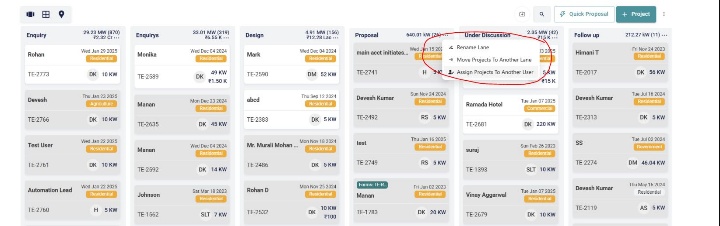
The projects should get transferred/reassigned in some time, you can monitor the progress of the operation from the floater at the bottom right of the screen.
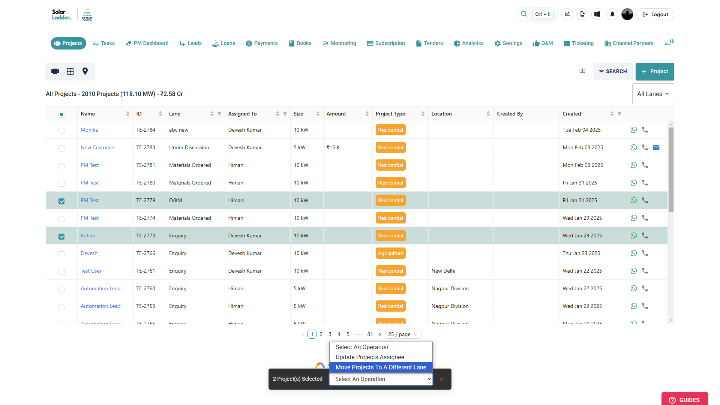
Moving All/Selected Multiple Projects from One Lane To Another - From the Table View
You can do the same thing as above from the table view as well.
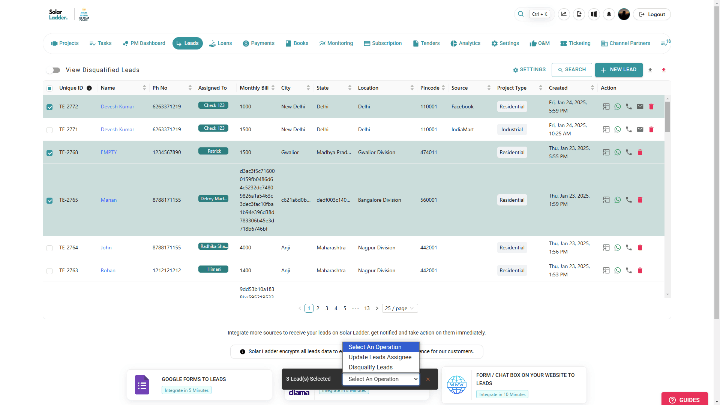
Assigning Multiple Leads to Another User / Disqualifying Multiple Leads
You can select multiple leads at once from the "Leads" Tab Table and select the operation you want to perform.
Related Articles
Advanced: How to change your account email?
If you want to change the email of an admin of your organisation: Reach out to your Solar Ladder account manager. If you want to change the email of a regular user of your organisation, follow the following steps: Go to Settings -> Team Members Click ...How to Change your Company Address
How to Change your Company Address Step 1: Go to Settings Tab and Click on Home Step 2: Scrool down to Address and Make the necessary changes Step 3: Click on Update Settings to save the changesHow to Change Company Logo
How to Change Company Logo Step 1: Go to Settings Tab and Click on Home Step 2: Go to Company Logo and Drop Image/Click on the box to upload logo Step 3: Click on Update Settings to save the changesHow to Download Solar Ladder on Android and IOS Devices
How to Download Solar Ladder on Android Device 1: Open Play Store on your android Device and Search for "Solar Ladder" Step 2: Click on the Application and then Click on Install Application will be successfully installed on your Android Device. How ...How To Change Your Account Password
Method 1: When You are not Logged In to your account When logging in, click on "Forgot Password" Enter your account's email and click on "Send Password Reset Email" This will send a password reset link to your email address, which you can use to ...