How to integrate Site Survey form in our account
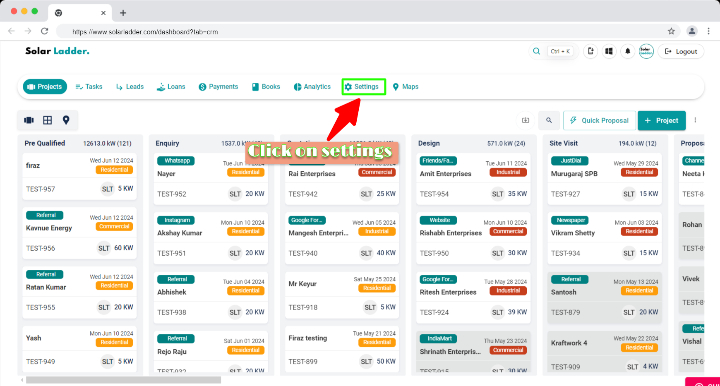
Step 1 : Click on Settings
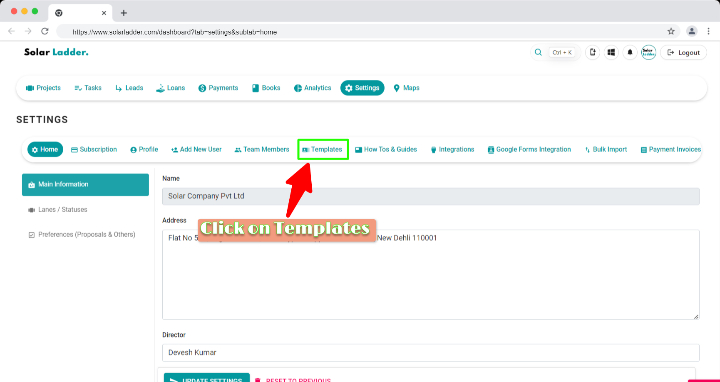
Step 2 : Click on Templates
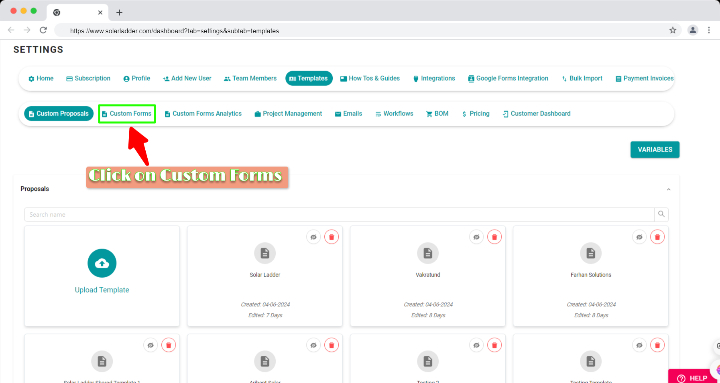
Step 3 : Click on Custom Forms
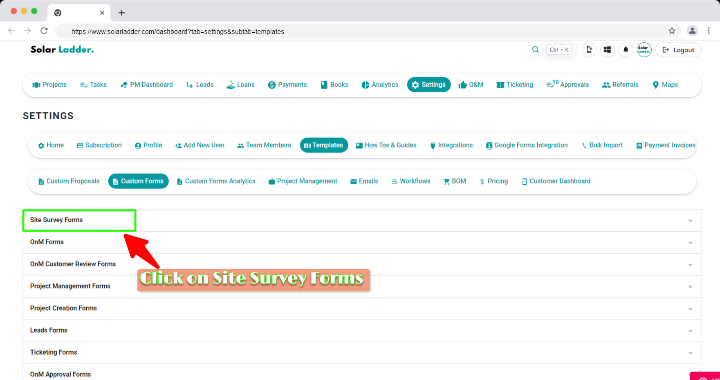
Step 4 : Click on Site Survey Forms
Step 5 : Click on Upload Template
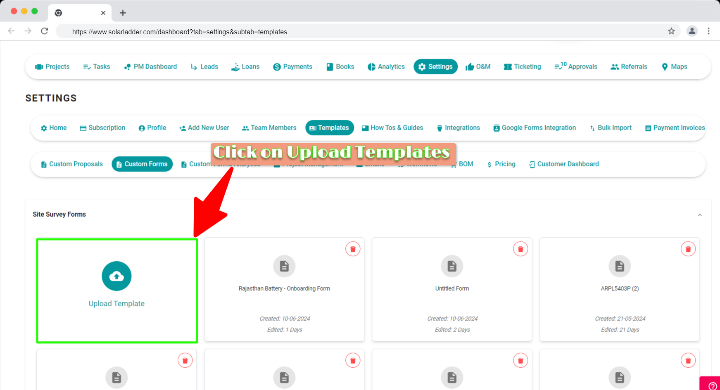
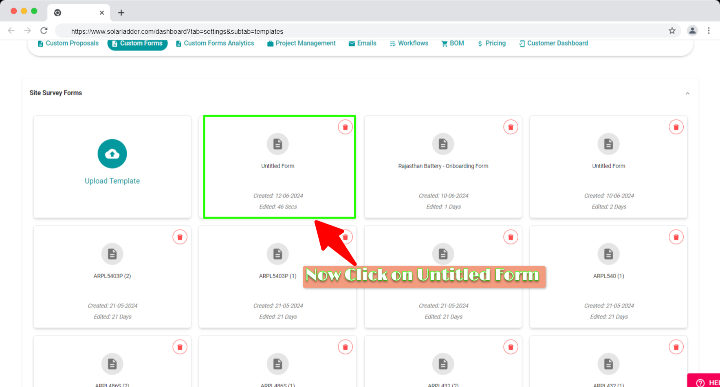
Step 6 : Click on Untitled Form (Untitled Form will be created after step 5)
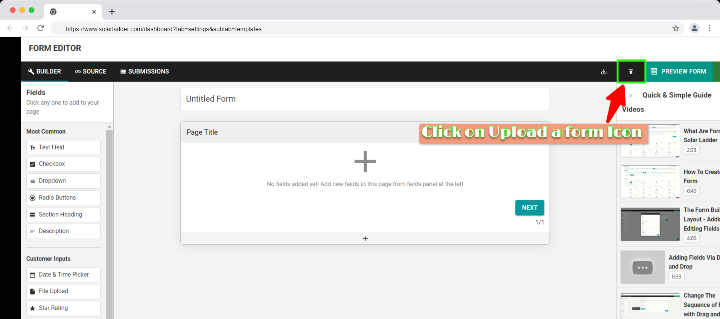
Step 7 : Click on Upload a Form Icon
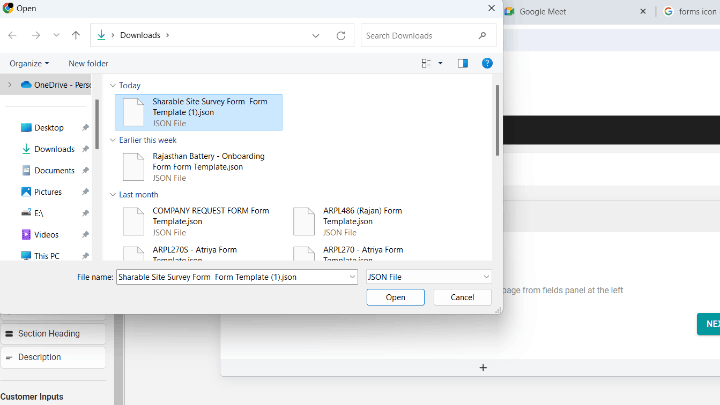
Step 8 : Upload a form that you want to integrate
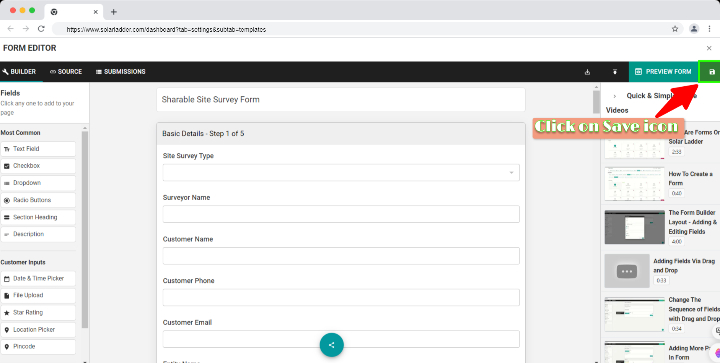
Step 9 : Click on Save icon
Related Articles
How to Make a Custom Site Survey Form
How to Make Custom Site Survey Form https://youtu.be/SX2mIv9lCNk Step 1: Go to Settings --> Templates --> Custom Forms Step 2: Click on New Template and a Form Called Untitled Form will be created. Click on it. Step 3: Select Fields on the Left ...How to Change Order of Categories/Tasks in Project Management
How to Change Order of Categories/Tasks in Project Management Step 1: Open the concerned project Step 2: Go to Project Management Tab Step 3: Click on the "Toggle Button" to allow Drag Step 4: Drag the concerned Category/Task "up or down" to the ...How To Add Tasks In Project Management Categories
How To Add Tasks In Project Management Categories Step 1: Open the Project and Go To Project Management Step 2: Select the Category you want to create a Task in by Clicking on the Drop Down Arrow and Click on + Add A Task Step 3: Enter necessary ...How To Add Sub - Tasks In Project Management
How To Add Sub - Tasks In Project Management Step 1: Open the Project and Go To Project Management Step 2: Select the Category where the Task you want to create a Sub-Task for is present Step 3: Click on the Task you want to create a Sub-Task for ...How to update location in project
Step 1 : Click on the project in which you want to update the location Step 2 : Click on Maps and Location Step 3 : Click on Select Location Yourself Step 4 : Click on Auto Detect My Location if you are present at the location OR Search the ...