How to update location in project
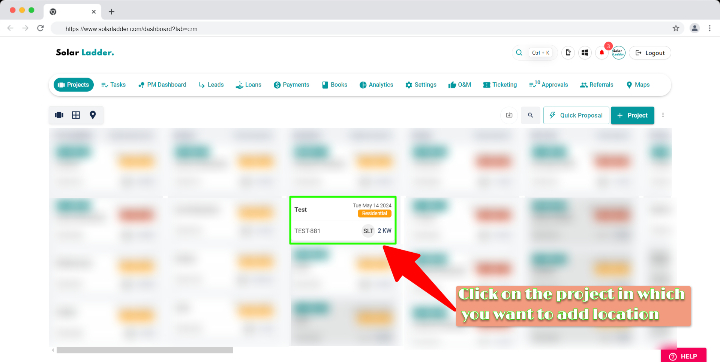
Step 1 : Click on the project in which you want to update the location
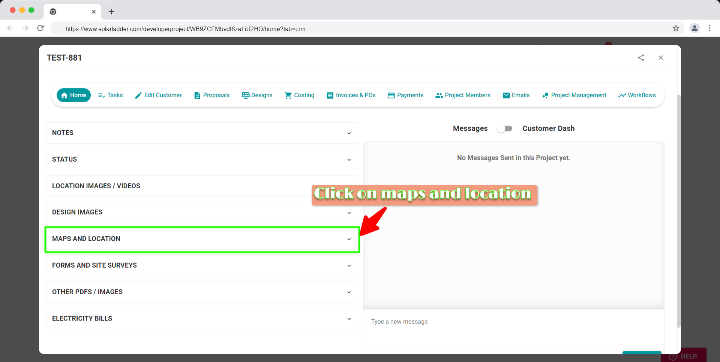
Step 2 : Click on Maps and Location
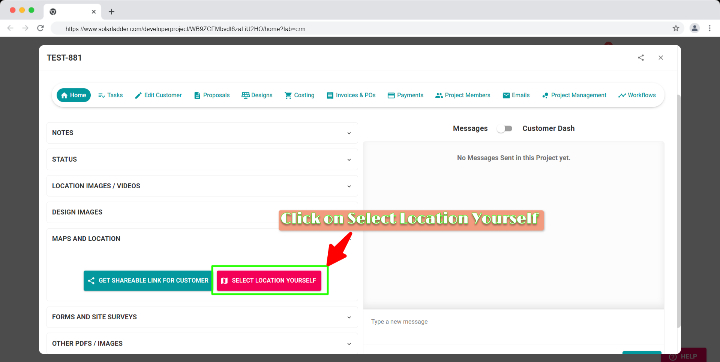
Step 3 : Click on Select Location Yourself
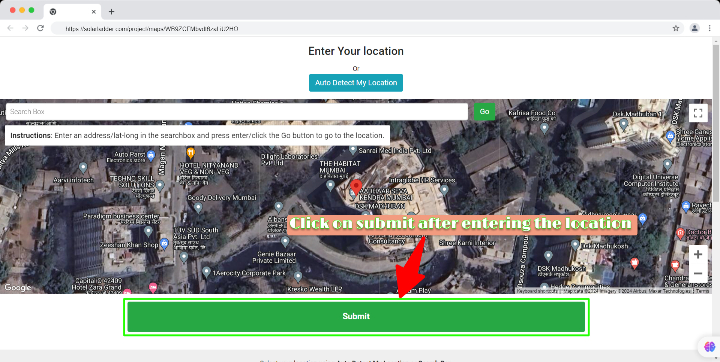
Step 4 : Click on Auto Detect My Location if you are present at the location OR Search the location/google Co-ordinates in search box
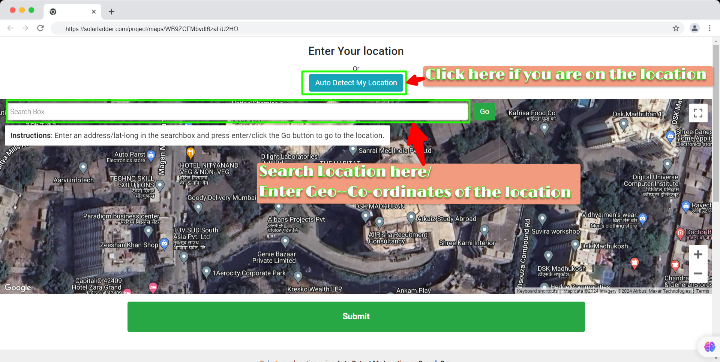
Step 5 : Click on Submit after entering the location
Step 6 : Your location has been added successfully. If you want to further change the location, Repeat the same steps.
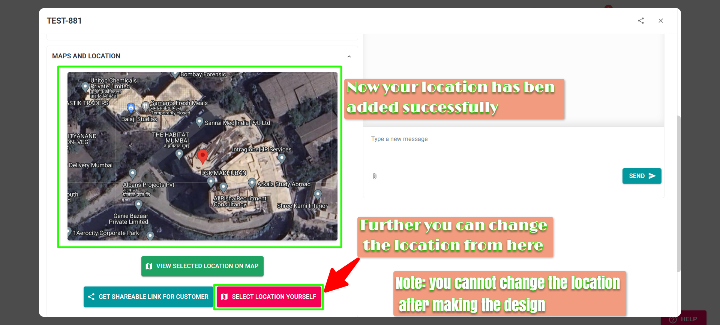
Note : Location cannot be changed for the project after making the design!!!
Related Articles
How to track a customer datewise
Step 1 : Click on the Project Step 2 : Click on Activity Logs Step 3 : Now you can track your customer datewiseHow To Backdate a Project Creation
How To Backdate a Project Creation Step 1: Go to Projects Tab and Open the project you want to backdate Step 2: Go to "Edit Customer" Step 3: Select the New Date Step 4: Click on Update ProjectHow To Initialise Project Management for A Project
How To Initialise Project Management for A Project Step 1: Open Project and Go To Project Management Step 2: Click on Initialise Project Management For This Project Step 3: Coose from one of the Saved Templates or Create a New One To Create New One, ...How To Create Categories in Project Management
How To Create Categories in Project Management Step 1: Open the project and Click on Project Management Step 2: Click on + Create A Category Step 3: Enter the necessary details Step 4: Press + Create Category Please Note: Start by adding the category ...How to Save a Project Management Template
How to Save a Project Management Template Step 1: Open the project with the concerned template Step 2: Go to Project Management Tab Step 3: Click on "3 dots" Select "Save Template" Step 4: Select "Save Template" Step 5: Add "Template Name" and Click ...