How To Add Tasks In Project Management Categories
How To Add Tasks In Project Management Categories
Step 1: Open the Project and Go To Project Management
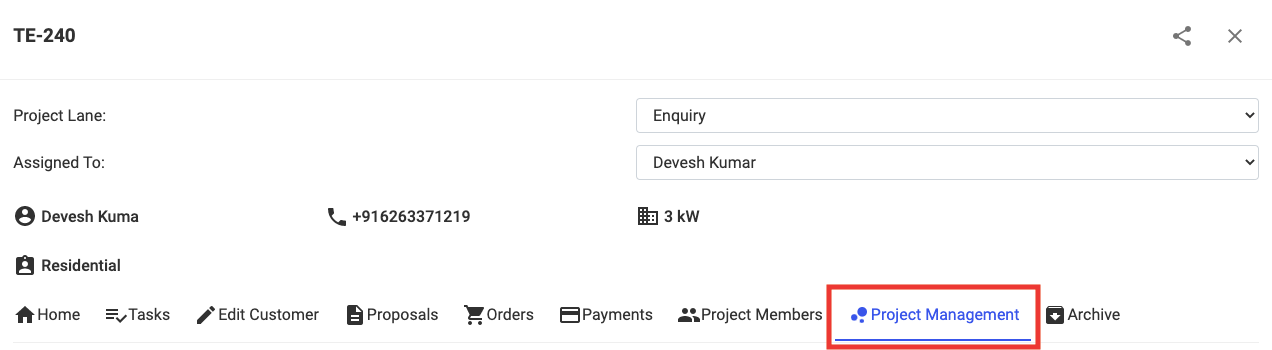
Step 2: Select the Category you want to create a Task in by Clicking on the Drop Down Arrow and Click on + Add A Task

Step 3: Enter necessary details of the Task
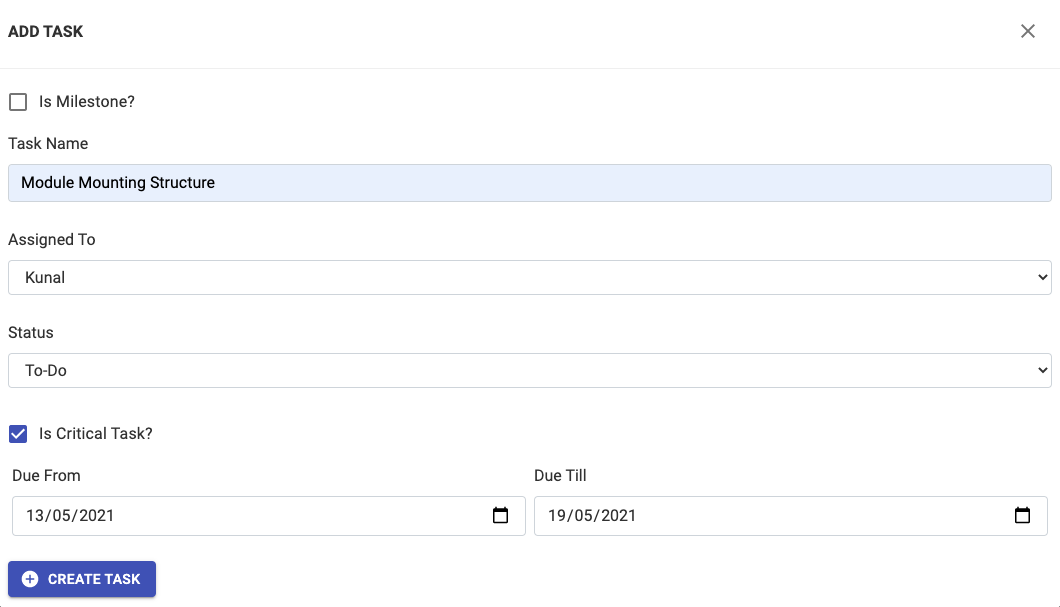
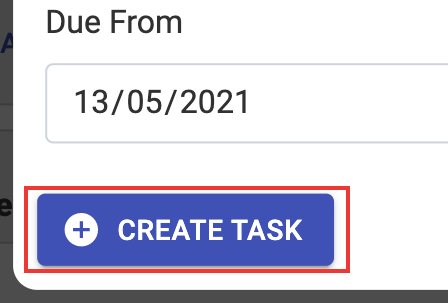
Step 4: Click on Create Task
You will now be able to see the added Tasks under any Category by clicking on the Drop Down Arrow next to the Category Name

Related Articles
How to Change Order of Categories/Tasks in Project Management
How to Change Order of Categories/Tasks in Project Management Step 1: Open the concerned project Step 2: Go to Project Management Tab Step 3: Click on the "Toggle Button" to allow Drag Step 4: Drag the concerned Category/Task "up or down" to the ...How To Add Sub - Tasks In Project Management
How To Add Sub - Tasks In Project Management Step 1: Open the Project and Go To Project Management Step 2: Select the Category where the Task you want to create a Sub-Task for is present Step 3: Click on the Task you want to create a Sub-Task for ...How To Create Categories in Project Management
How To Create Categories in Project Management Step 1: Open the project and Click on Project Management Step 2: Click on + Create A Category Step 3: Enter the necessary details Step 4: Press + Create Category Please Note: Start by adding the category ...How to Save a Project Management Template
How to Save a Project Management Template Step 1: Open the project with the concerned template Step 2: Go to Project Management Tab Step 3: Click on "3 dots" Select "Save Template" Step 4: Select "Save Template" Step 5: Add "Template Name" and Click ...How to Duplicate a Category in Project Management
How to Duplicate a Category in Project Management Step 1: Open the concerned project Step 2: Go to Project Management Tab Step 3: Click on "Duplicate Category Icon" Step 4: Click "Ok" A duplicate category will be created consisting of all tasks and ...