How To Link Google Forms to Leads Page
Watch Video or Follow below given steps
Step 2: Install the Solar Ladder Google Forms to Leads add-on. (Click Here)
Note: Allow the necessary permissions for the app to connect
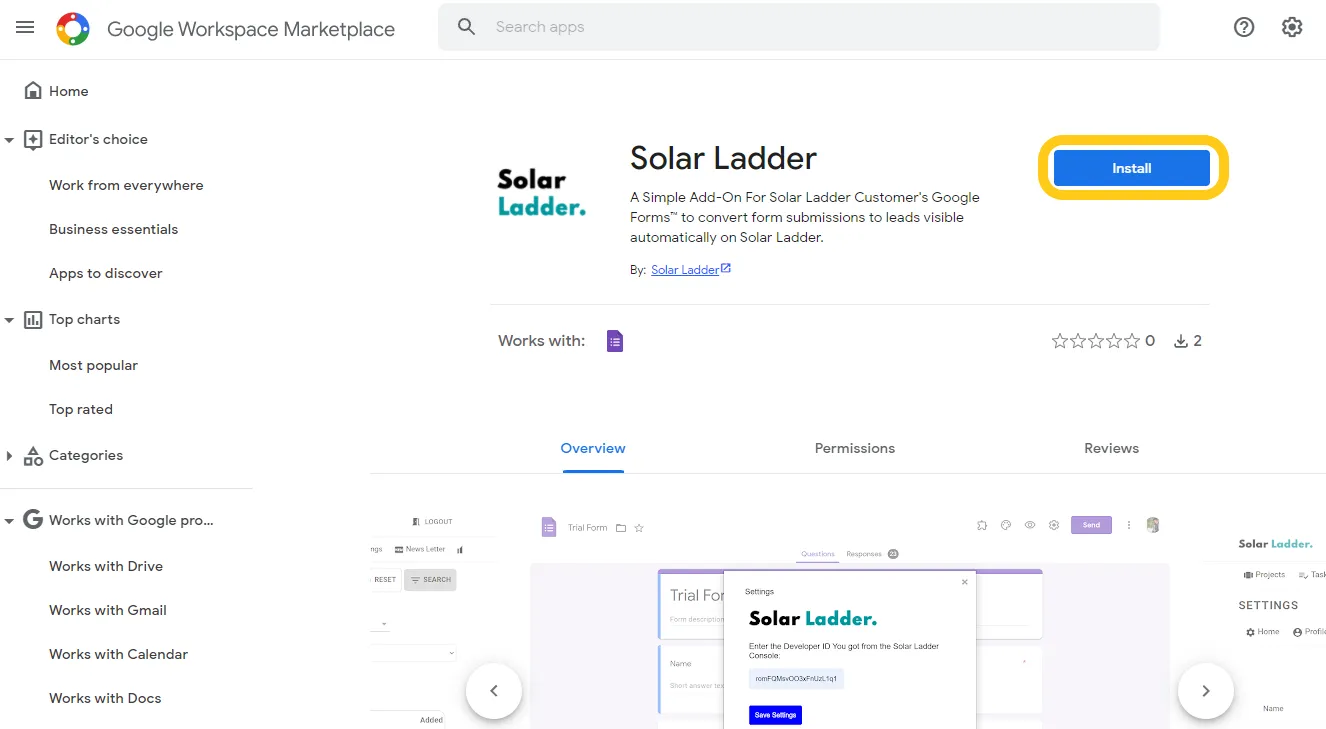
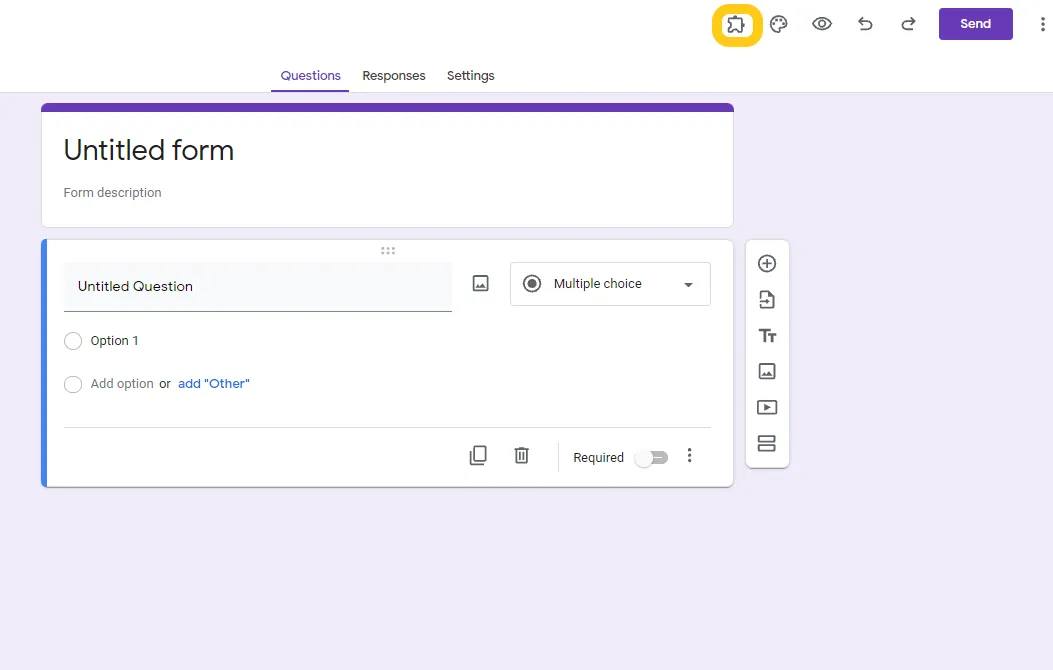
Step 3: Go back to the Google Form you want to link and Refresh the Page. A new Add On Icon will be visible on the Top of the Page
Step 4: On a New Window Go to Solar Ladder Setting Page and Click on Form Integration and Click Add New Google Form

Step 5: Copy the Developer ID and Form ID
Step 6: Go back to Google Forms and Click the Add On icon and Click on Solar Ladder
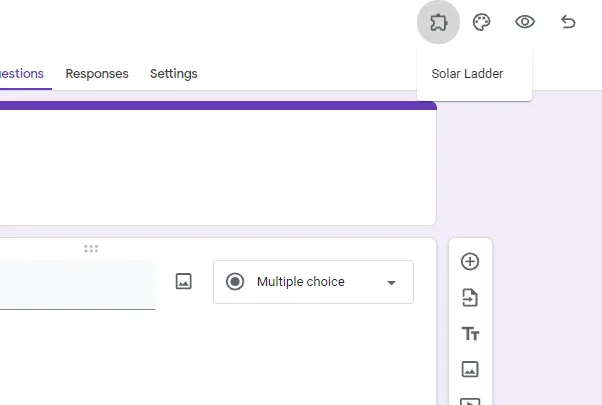
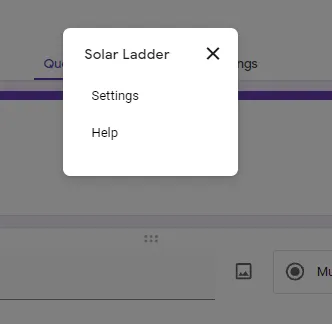
Step 7: Click on Settings
Step 8: Paste the Developer ID and Form ID from Solar Ladder
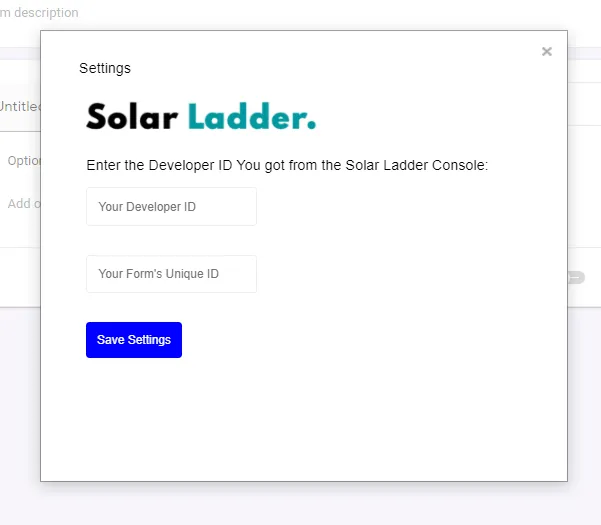
Step 9: Go Back to Solar Ladder and Fill the Form with the corresponding field names in your Google Form and Click Add Integration
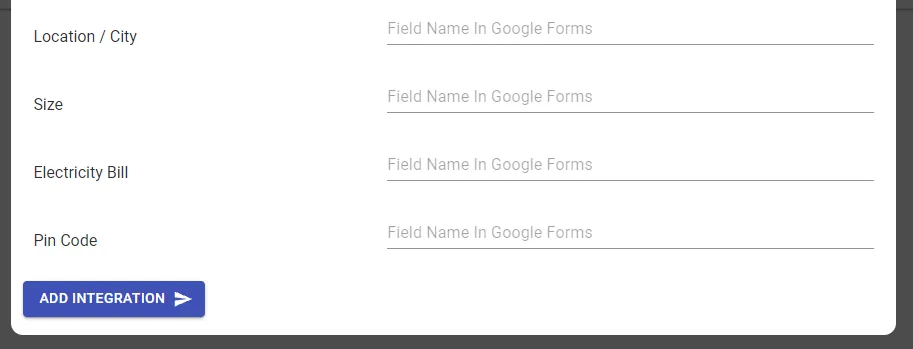
Note: If you have already installed the Solar Ladder Add On, you only have to repeat Step 4 to Step 9
Related Articles
How to Link Google Calendar with Solar Ladder
Watch Video or Follow below given steplas: Step 1: Go to Settings and Click on Profile Step 2: Turn on toggle button or Google Form Integration Step 3: Select the account you want to link Solar Ladder will be successfully linked with Google CalendarHow To Integrate IndiaMART with Solar Ladder
How To Integrate IndiaMART with Solar Ladder To Integrate IndiaMART with Solar Ladder, you will require the CRM Key from IndiaMART and your Mobile Number. To Genereate CRM Key on IndiaMART follow these steps of Integration: STEP 1: Log Into IndiaMART ...STEP BY STEP GUIDE TO INTEGRATE FACEBOOK
Step 1: Connect Your Facebook Account Start by connecting your Facebook account. Click the button below to begin: Step 2: Select Pages and Permissions During the connection process, you will be prompted to select the pages and permissions you want to ...How to assign Leads to Members
How to assign leads to Members: Any leads that come to the leads page can be assigned automatically to the members with the help of three different options that are: 1. Via Project SIze. 2. Via Project Pin Code. 3. Via Alternative Option (Round ...How to Share Customer Dashboard Link with Customer
Step 1: Open the concerned project and Go to Customer Dashboard Tab Step 2: Click on "Get Link To Share With Customer" Link gets copied to the clipboard. Share it with the customer via preferred channel of communication.