How To Start O&M for a Project on Solar Ladder
How To Start an O&M on Solar Ladder
Step 1: Click on "View Details" of the project you want to start O&M for
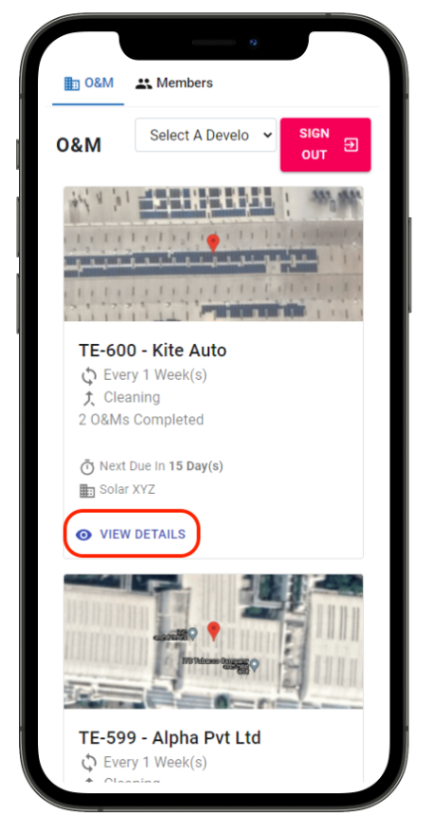
Step 2: Click on "Start O&M"

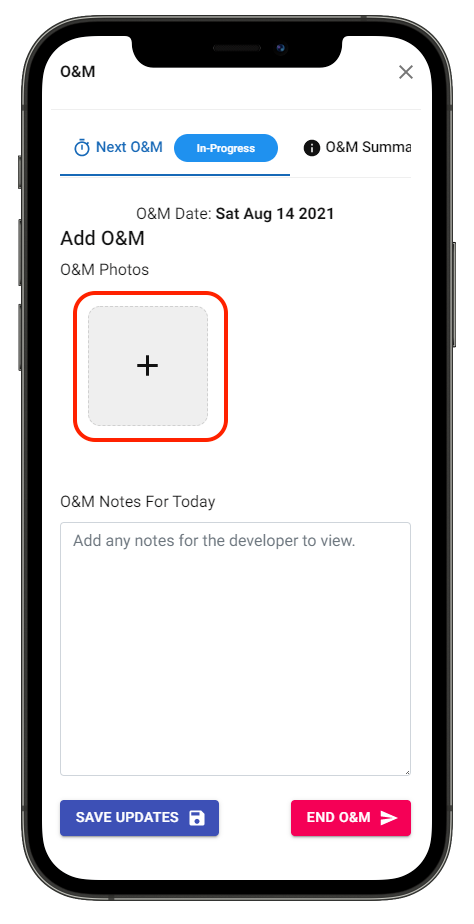
Step 3: Click on "+" to add O&M Photos
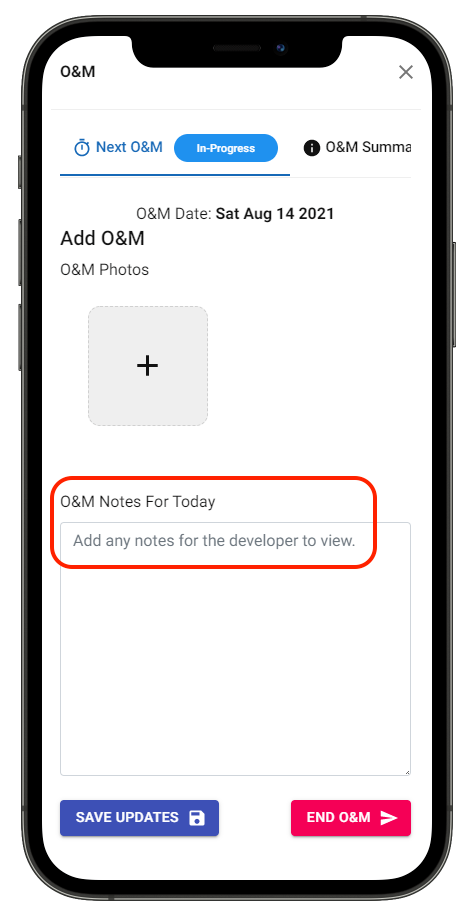
Step 4: Enter O&M Notes
Step 5: Click on "Save Updates" to save changes
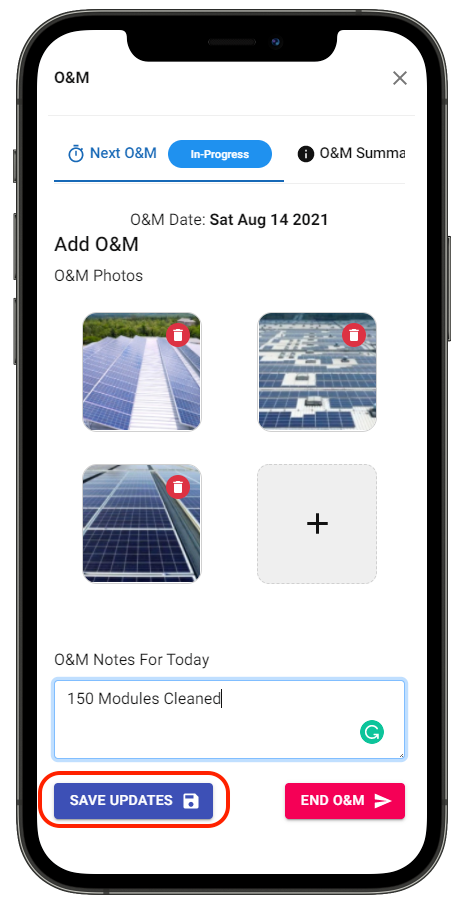
Scroll down to find the details of the information saved in "Previously Saved Information"
Please Note: Click on "End O&M" only when the O&M cycle is complete
If you want to add more photos and notes, repeat Step 3, 4 & 5
Related Articles
How to End O&M for a Project on Solar Ladder
How to End O&M for a Project on Solar Ladder Please Note: End O&M only once the work of that visit is complete Step 1: Click on "View Details" of the project you want to start O&M for Step 2: Scroll to the bottom of the page Step 3: Click on "End ...How to Use Solar Ladder O&M App
How to Use Solar Ladder O&M App Step 1: Open the link: ompartners.solarladder.com Step 2: Enter your Phone Number Step 3: Click on Verify Step 4: Enter the 6-digit Code received Step 5: Press Continue Once you have logged into your account, you can ...How To View Previously Added O&M Information
How To View Previously Added O&M Information on Solar Ladder Step 1: Click on "View Details" of the project you want to start O&M for Step 2: Scroll to the bottom of the page Step 3: Find Previously Updated O&M Information Step 4: Click on the drop ...How to send notifications for O&M to your customers
Solar Ladder has the ability to send out notifications about upcoming O&Ms to your customers via WhatsApp on a weekly basis. || Do note that this is a closed feature and is available on request. Please reach out to our customer success team to ...How to Check O&M Schedule of a Project
How to Check O&M Schedule of a Project Step 1: Open the link: ompartners.solarladder.com Step 2: Login via OTP by using your Phone Number (Having difficulty Logining In? Click Here) Once you have logged into your account, Step 3: Click on "View ...