How to Check O&M Schedule of a Project
How to Check O&M Schedule of a Project
Step 1: Open the link: ompartners.solarladder.com
Step 2: Login via OTP by using your Phone Number (Having difficulty Logining In? Click Here)
Once you have logged into your account,
Step 3: Click on "View Details" of the project you want to check the schedule for

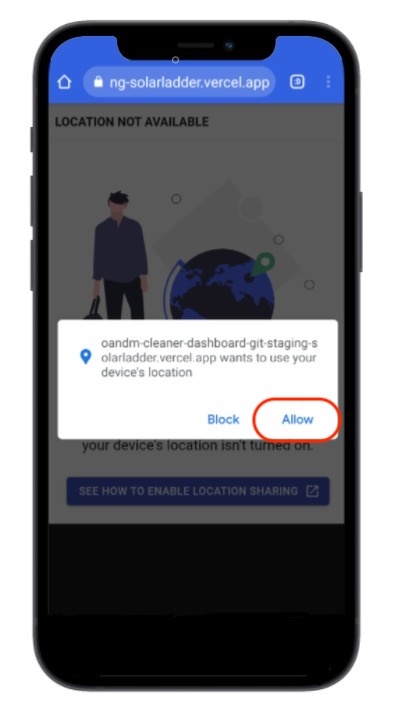
Step 4: Allow Solar Ladder to use your Location
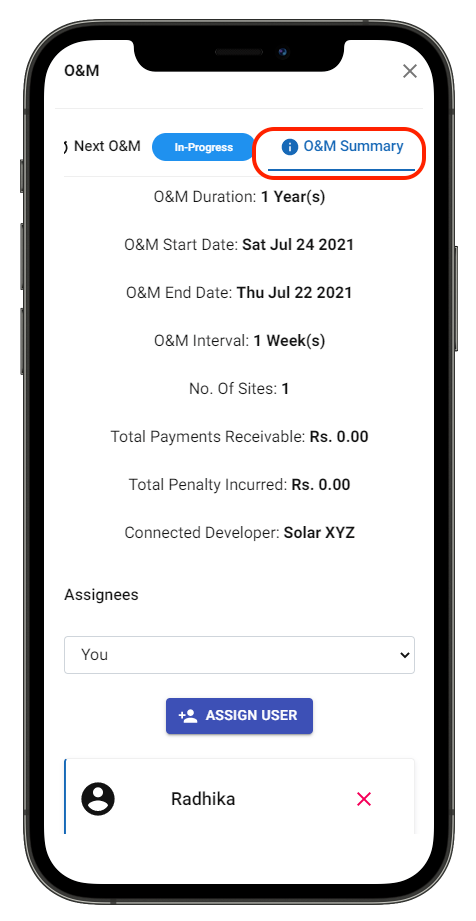
Step 5: Go to "O&M Summary" Tab and Scroll Down
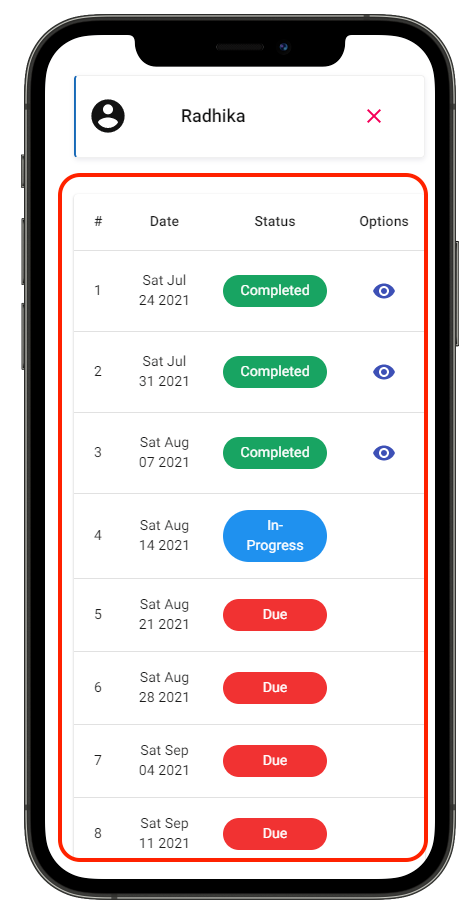
Step 6: Find Details of each all O&M Visits scheduled
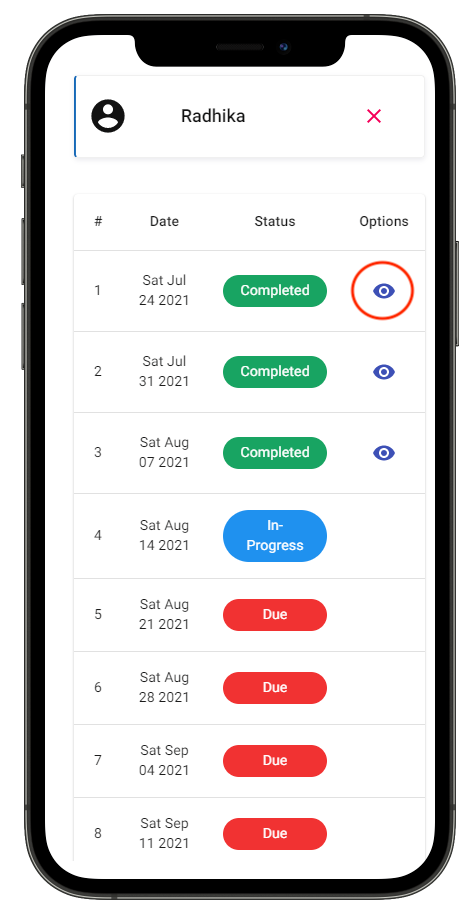
Step 7: Click on "Eye Icon" to view photos and notes of completed O&M Visits
Related Articles
How Add O&M for a Project
How Add O&M for a Project Step 1: Open the concerned project Step 2: Go to O&M Tab and Click on > Add Project O&M Step 3: Fill all necessary details and Click on > Create O&MHow to do O&M Scheduling for a Project
How to do O&M Scheduling for a Project Step 1: Open the concerned project Step 2: Go to O&M Tab and Click on > Add Project O&M Step 3: Select "Scheduling O&M" in Schedule Type Step 4: Set Start and End Date Step 5: Click on "Repeating Mode" if the ...How to End O&M for a Project on Solar Ladder
How to End O&M for a Project on Solar Ladder Please Note: End O&M only once the work of that visit is complete Step 1: Click on "View Details" of the project you want to start O&M for Step 2: Scroll to the bottom of the page Step 3: Click on "End ...How To Start O&M for a Project on Solar Ladder
How To Start an O&M on Solar Ladder Step 1: Click on "View Details" of the project you want to start O&M for Step 2: Click on "Start O&M" Step 3: Click on "+" to add O&M Photos Step 4: Enter O&M Notes Step 5: Click on "Save Updates" to save changes ...How To View Previously Added O&M Information
How To View Previously Added O&M Information on Solar Ladder Step 1: Click on "View Details" of the project you want to start O&M for Step 2: Scroll to the bottom of the page Step 3: Find Previously Updated O&M Information Step 4: Click on the drop ...