How to Export a saved Email Template while composing a New Email
How to Export a saved Email Template while composing a New Email
Step 1: Open the concerned project
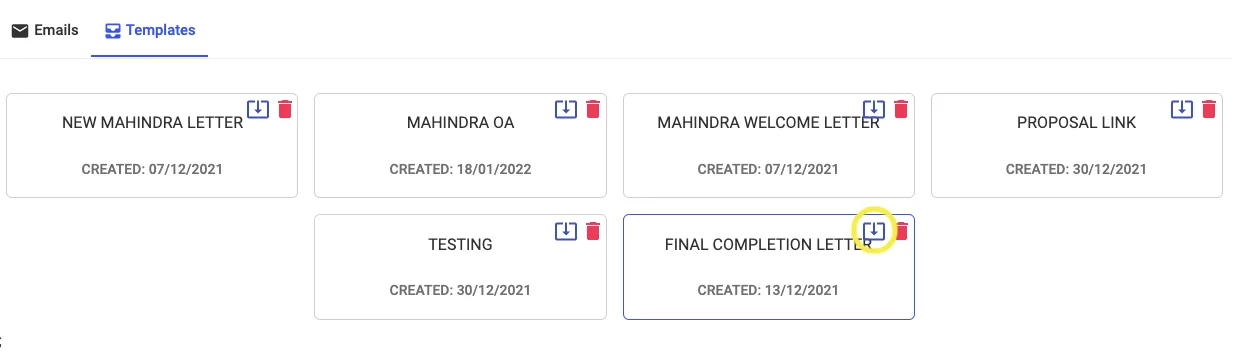
Step 2: Go to Emails Tab and Click on Templates

Step 3: Select the required template and Click on "Export Button"
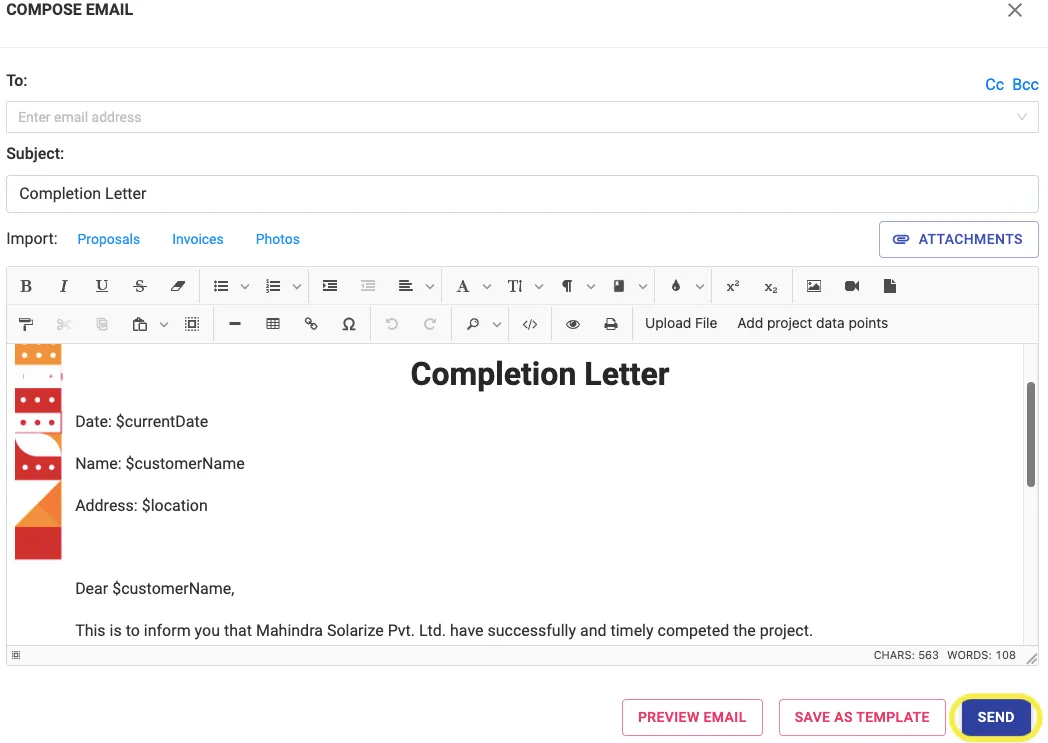
Make the necessary changes in the template and
Step 4: Click on "Send"
Related Articles
How to Create and Save an Email Template
How to Create and Save an Email Template Step 1: Open the concerned project Step 2: Go to Emails Tab and Click on Compose Compose the Email with with relevant text and Images, once done Step 3: Click on "Save as Template"How to Link Email to Solar Ladder
Depending on your use case, you might want any emails sent via Solar Ladder to reflect your email address, see the following for reference: Step 1: Go to Settings -> Profile and click on Connect Email Account for Sending Emails Step 2: Click on Solar ...How to Export a BOM Template to a New Project
How to Export a BOM Template to a New Project Step 1: Open the concerned project Step 2: Go to Orders > Costing and Click on + Add Item Step 3: Go to "Templates" and Click on the Export Button Step 4: Click on OK Template will be ExportedAdvanced: How to change your account email?
If you want to change the email of an admin of your organisation: Reach out to your Solar Ladder account manager. If you want to change the email of a regular user of your organisation, follow the following steps: Go to Settings -> Team Members Click ...How to Save a BOM Template
How to Save a BOM Template Step 1: Open the concerned project Step 2: Go to Orders > Costing and Click on the 3 dots Step 3: Click on "Save Template" Step 4: Enter Template Name and Click on Save Template Template will be saved