How to Save a BOM Template
How to Save a BOM Template
Step 1: Open the concerned project
Step 2: Go to Orders > Costing and Click on the 3 dots

Step 3: Click on "Save Template"
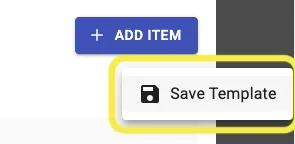
Step 4: Enter Template Name and Click on Save Template

Template will be saved
Related Articles
How to Export a BOM Template to a New Project
How to Export a BOM Template to a New Project Step 1: Open the concerned project Step 2: Go to Orders > Costing and Click on + Add Item Step 3: Go to "Templates" and Click on the Export Button Step 4: Click on OK Template will be ExportedHow to Dispatch an Item
How to Dispatch Item on Solar Ladder Step 1: Click on Dispatch in Order Tab Step 2: Click on the "Tick Box" of the item you want to dispatch You can Undo the action by Clicking on the "Tick Box" AgainHow to Edit Dispatch Date of an Item
How to Edit Dispatch Date of an Item Step 1: Click on the "Edit Icon" of the item you want to edit Step 2: Change the date by clicking on the date button Step 3: Click on Save IconHow to Add Freight Cost to BoM
How To Add Freight Cost to BoM Step 1: Click on the Edit Icon of the Item you want to add freight. (Please keep in mind if the item is dispatched then you can't edit. You can undo the dispatch and edit the item) Step 2: Add the Freight Cost Step 3: ...How to Save a Project Management Template
How to Save a Project Management Template Step 1: Open the project with the concerned template Step 2: Go to Project Management Tab Step 3: Click on "3 dots" Select "Save Template" Step 4: Select "Save Template" Step 5: Add "Template Name" and Click ...