How to Save BOM as a Template
Step 1: Open the project
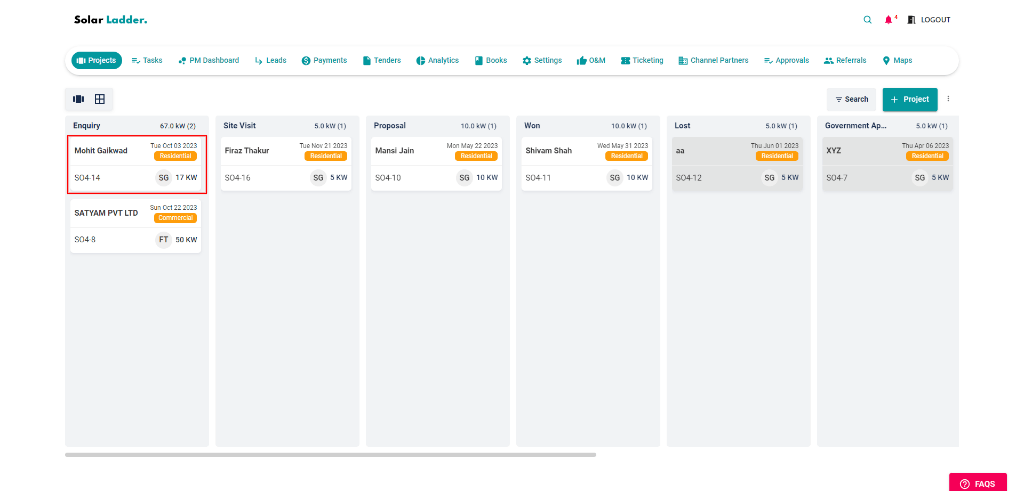
Step 2: Go To the Costing Tab
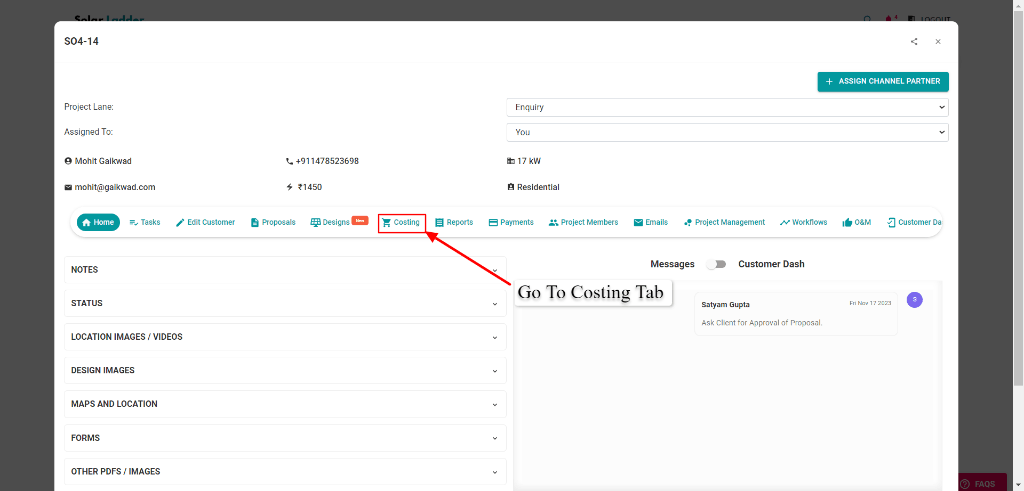
Step 3: Click on ‘SAVE TEMPLATE’ new tab will appear
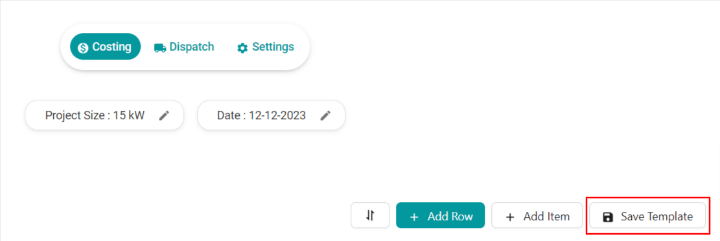
Step 4: Name the template & Click on 'SAVE TEMPLATE'

To Import the template in the project,
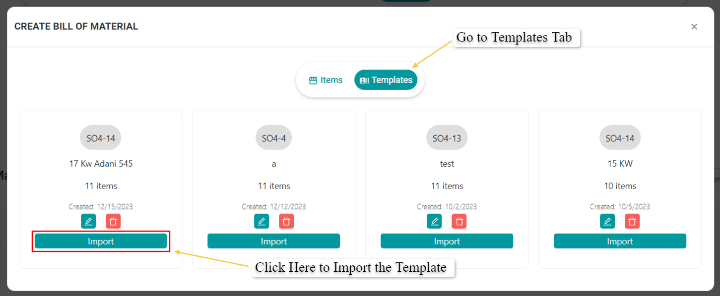
Step 5: Click on 'ADD ITEM' new tab will appear

Step 6: Go to Template Tab & Click on 'IMPORT'
Related Articles
How To Use Costing (BOM)
Step 1: Open the project you want to create costing for Step 2: Go To the Costing Tab Step 3: Click on ‘Edit Tool’ & fill the details asked Select the Category Name the Itme Select UoM Enter the Quantity Enter Per Unit rate Select the GST % Add ...Introduction to BOM Costing Module
Check the video below to learn about Solar Ladder's costing module and how it can help you track project expenses and find its true profits:How To Add Item in BOM
Step 1: Open the project Step 2: Go To the Costing Tab Step 3: Click on ‘ADD ITEM’ new tab will appear Step 4: Click on ‘CREATE ITEM’ to add all the required items Step 5: Fill the details & Click on Save Step 6: Select the item, add quantity & Click ...How to Save a BOM Template
How to Save a BOM Template Step 1: Open the concerned project Step 2: Go to Orders > Costing and Click on the 3 dots Step 3: Click on "Save Template" Step 4: Enter Template Name and Click on Save Template Template will be savedHow to Save a Project Management Template
How to Save a Project Management Template Step 1: Open the project with the concerned template Step 2: Go to Project Management Tab Step 3: Click on "3 dots" Select "Save Template" Step 4: Select "Save Template" Step 5: Add "Template Name" and Click ...