What is Customer Dashboard and How to Activate It
How to Activate Customer Dashboard
Step 1: Open the concerned project and Go to Customer Dashboard Tab

Step 2: Click on "Initialize Customer Dashboard for this Project"
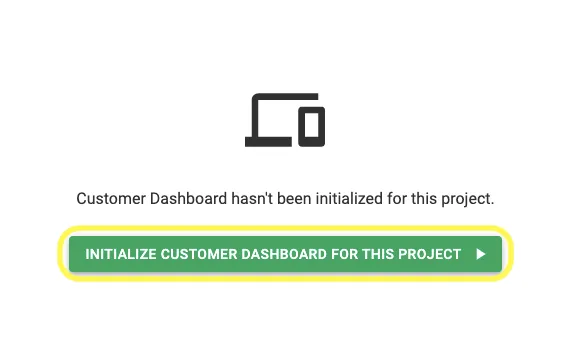
The Customer Dashboard will be initialized and you can start using it. Refer to the other guides under this section to understand how to use the Customer Dashboard.
Related Articles
How to Use Customer Dashboard
How to Use Customer Dashboard Using Onboarding for Customer Dashboard: Using Design Section for Customer Dashboard: Using Execution Section for Customer Dashboard: Using Payments Section for Customer Dashboard:How to Share Customer Dashboard Link with Customer
Step 1: Open the concerned project and Go to Customer Dashboard Tab Step 2: Click on "Get Link To Share With Customer" Link gets copied to the clipboard. Share it with the customer via preferred channel of communication.How to Edit Customer Information
How to Edit Customer Information Step 1: Open the concerned project Step 2: Go to Edit Customer Tab and make desired changes Step 3: Click on Update Project at the bottom of the page to Save the changesHow To Create A Task On Task Dashboard
How To Create A Task on Task Dashboard Please Note: On Task Dashboard, you can only see the tasks that are either assigned to you by someone else or the tasks that you assigned to yourself.To see tasks that you created for others, please open the ...How To View Previously Added O&M Information
How To View Previously Added O&M Information on Solar Ladder Step 1: Click on "View Details" of the project you want to start O&M for Step 2: Scroll to the bottom of the page Step 3: Find Previously Updated O&M Information Step 4: Click on the drop ...