How To Create A Task In A Project
How To Create A Task In A Project
Step 1: Go to Projects Dashboard and Open the Project you want to Create a Task for
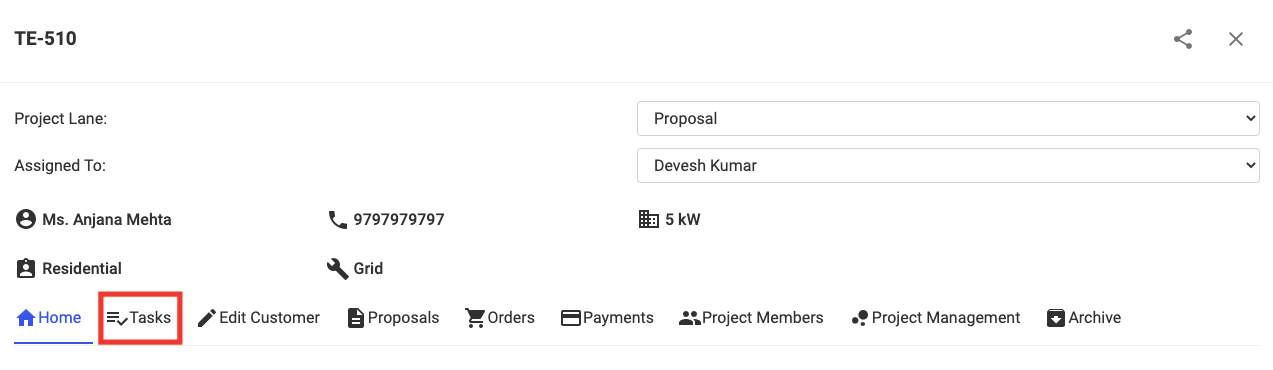
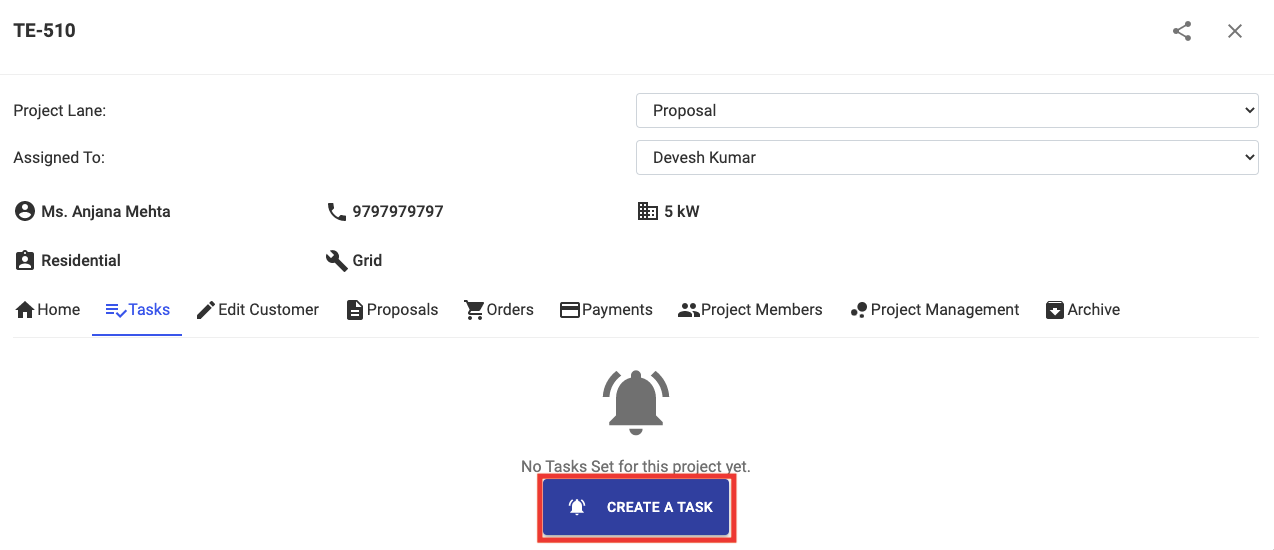
Step 2: Open Tasks and Click on Create A Task
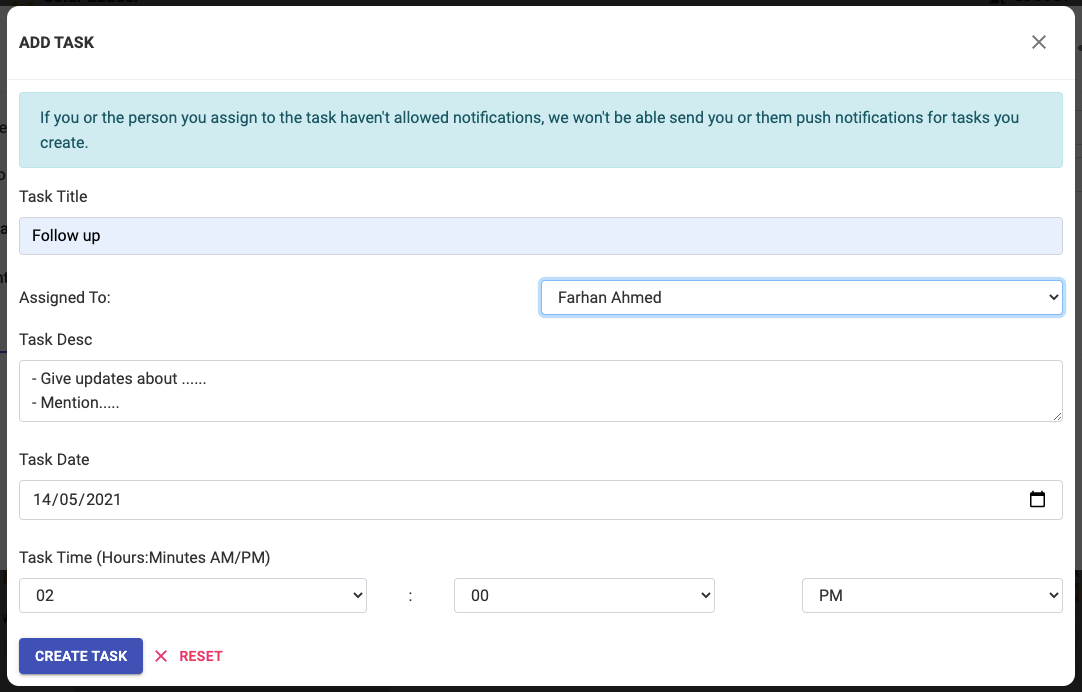
Step 3: Enter Task Details, Due Date and Assign the Task to either Yourself or Your Team Members
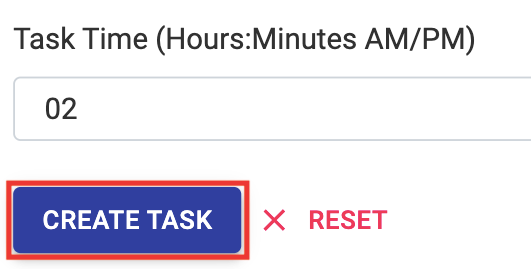
Step 4: Click on Create Task
Please Note: If you or the person you assign to the task haven't allowed notifications, we won't be able send you or them push notifications for tasks you create
Related Articles
How To Create A Task On Task Dashboard
How To Create A Task on Task Dashboard Please Note: On Task Dashboard, you can only see the tasks that are either assigned to you by someone else or the tasks that you assigned to yourself.To see tasks that you created for others, please open the ...How to Edit Customer Information
How to Edit Customer Information Step 1: Open the concerned project Step 2: Go to Edit Customer Tab and make desired changes Step 3: Click on Update Project at the bottom of the page to Save the changesHow To Add A New Project
How To Add A New Project Step 1: Go to Project Dashboard and Click on + Add Project Step 2: Enter Customer Details Step 3: Select the "Project Lane" to which you want to add this project to Step 4: Select the Member you want to Assign the Project to ...Delete/Archive a Project
How to Delete/Archive a Project Step 1: Go to Projects Tab and Open the project you want to delete Step 2: Go to Archive Tab in the project and Click on "Click Here to Archive this Project" Step 3: Click on OK The project will get archivedHow To Add Project Members In A Project
How To Add Project Members In A Project Step 1: Open the Project you want to add a member to and Go to Project Members Step 2: Select the User you want to add from the list of Team Members Step 3: Click on Give User Access and then Press OK New ...