How To Change a Project Lane
How To Change a Project Lane
There are Two ways to Change the Lane of a Project
Approach 1
Step 1: Open the Project
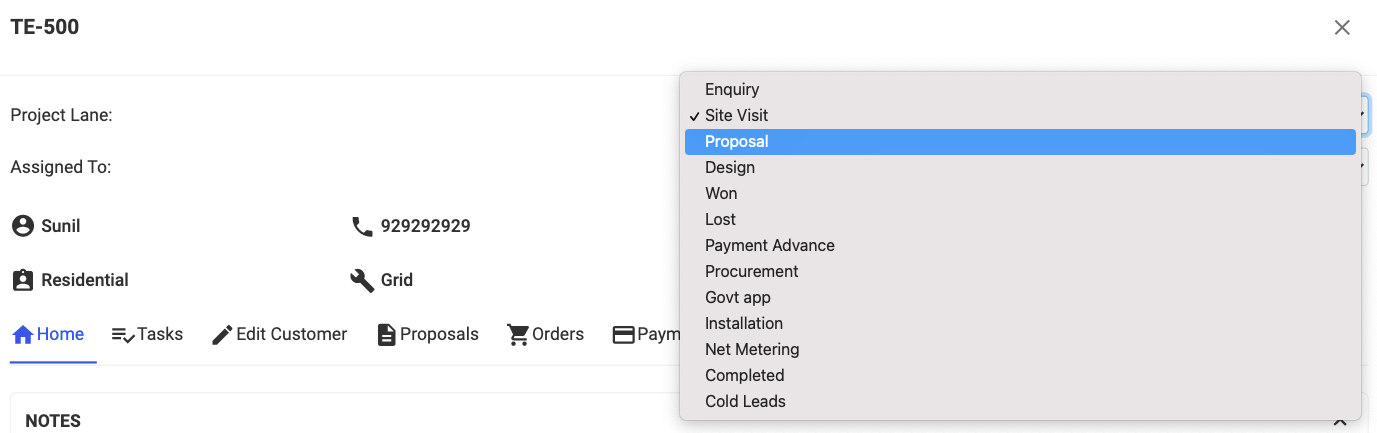
Step 2: Change Project Lane to the Required Lane and Close Project

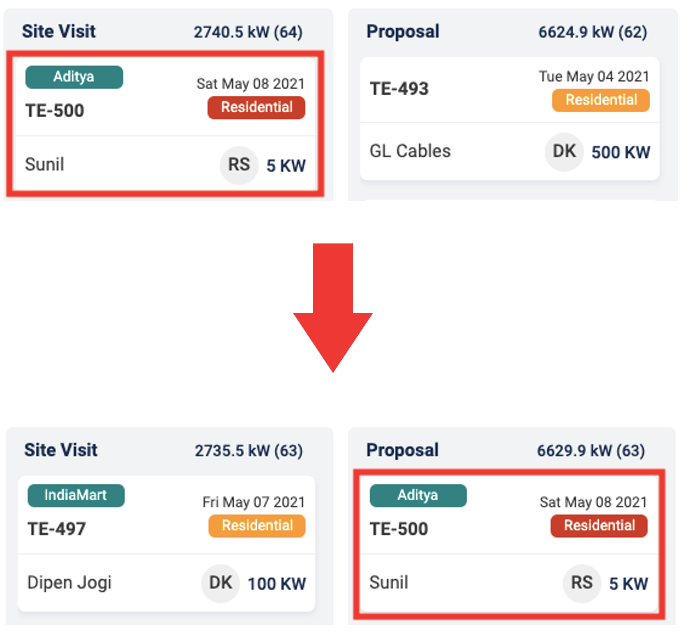
Project will move to the Selected Lane from Old One
Approach 2:
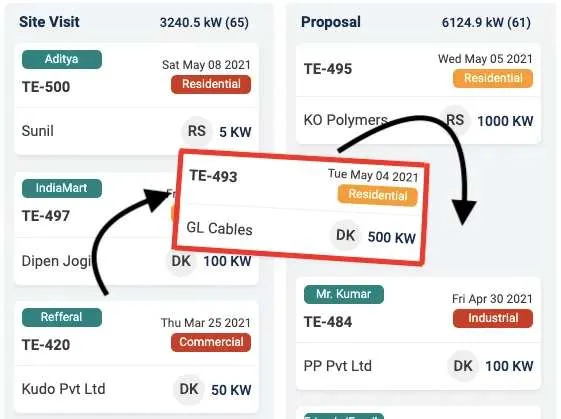
Place cursor on the Project and Drag it across the lane to the required lane and Drop it there
Related Articles
How to Change a Lane Name
How To Change a Lane Name Step 1: Go to Settings and Open Home Step 2: Scroll down to "Your Project Lanes" Step 3: Select the Lane for which you want to change the name and Enter New Name Step 4: Click on Update Lane NamesHow to Change Active Lane to filter lanes in Table View
How to Change Active Lane to filter lanes in Table View Step 1: Go to Projects Tab and Click on Table View Icon Step 2: Click on the drop down next to Active Lane Step 3: Select the Preferred Lane The list will then display all projects in the ...How To Add A New Project Lane
How To Add A New Project Lane Step 1: Go to Settings and Click on Home Step 2: Scroll Down to your Project Lanes and decide the Position of the New Lane For Eg. Lets say you want to add a Lane called Site Visit 2 between Proposal and Design, since ...How to Edit Customer Information
How to Edit Customer Information Step 1: Open the concerned project Step 2: Go to Edit Customer Tab and make desired changes Step 3: Click on Update Project at the bottom of the page to Save the changesHow To Add A New Project
How To Add A New Project Step 1: Go to Project Dashboard and Click on + Add Project Step 2: Enter Customer Details Step 3: Select the "Project Lane" to which you want to add this project to Step 4: Select the Member you want to Assign the Project to ...