How To Assign A Project
How to Assign A Project
Please Note: The following points are for Partial Users i.e. members who do not have Admin Access
1. Assign Project To Yourself ("You")
When creating a project, if you assign the project to yourself, you will be the "Owner" of the project and will have the liberty to:
- Add Other Team Members anytime by going on Project Members.
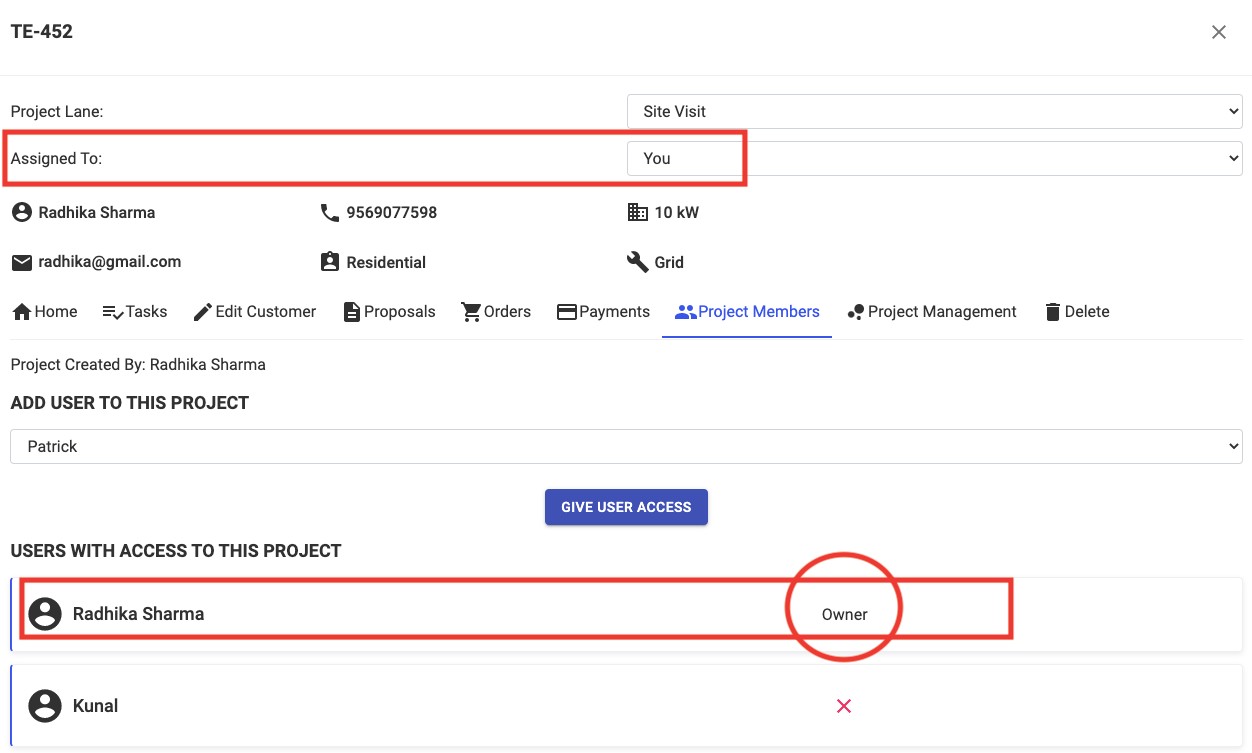
- Assign it to someone else in the team anytime later. By doing this, you will no longer be the Owner of the project but just be a project member and will no longer have the liberty to add other members. You will still be a part of that project throughout its course.
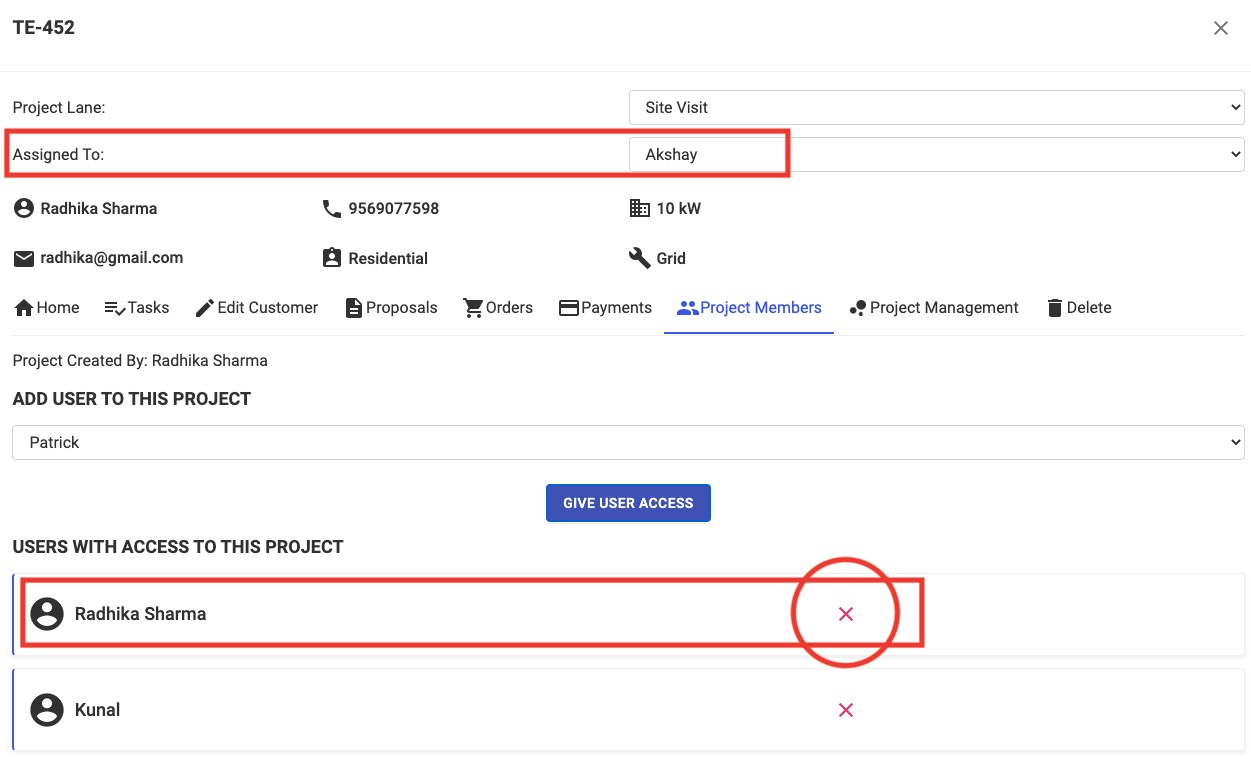
2. Assign the Project to Another Team Member
If while creating a new project, you assign the project directly to someone else, you will no longer have access to that project and will not be able to see that particular project on your dashboard.
TIP:
If you want to be just a project member and not the owner, you can first assign the project to yourself while creating it and then open it on dashboard and assign it to someone else. This will allow you to be a project member in the project.
Related Articles
How To Initialise Project Management for A Project
How To Initialise Project Management for A Project Step 1: Open Project and Go To Project Management Step 2: Click on Initialise Project Management For This Project Step 3: Coose from one of the Saved Templates or Create a New One To Create New One, ...How To Backdate a Project Creation
How To Backdate a Project Creation Step 1: Go to Projects Tab and Open the project you want to backdate Step 2: Go to "Edit Customer" Step 3: Select the New Date Step 4: Click on Update ProjectHow To Create Categories in Project Management
How To Create Categories in Project Management Step 1: Open the project and Click on Project Management Step 2: Click on + Create A Category Step 3: Enter the necessary details Step 4: Press + Create Category Please Note: Start by adding the category ...How to Save a Project Management Template
How to Save a Project Management Template Step 1: Open the project with the concerned template Step 2: Go to Project Management Tab Step 3: Click on "3 dots" Select "Save Template" Step 4: Select "Save Template" Step 5: Add "Template Name" and Click ...How To Delete A Project Management Template
How To Delete A Project Management Template Step 1: Go to Settings and Click on Templates Step 2: Select the "Bin" Icon on the Template you want to Delete Step 3: Click on OK